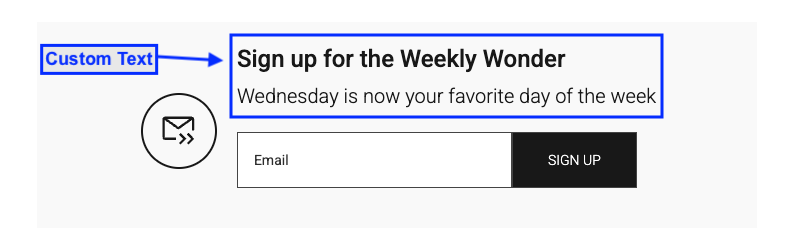
While Newsletter blocks on your homepage and within articles can be customized individually, you may be wondering about the other key locations where readers encounter newsletter sign-up prompts. These managed locations include the registration form, global footer, and article footer. Yes, you can customize these CTAs too!
TABLE OF CONTENTS
- Locations with default text
- Registration form (checkbox)
- Global Footer
- Article Footer
- How to Customize Newsletter Text
- Why Customize Your Newsletter CTAs?
- Locations with custom text
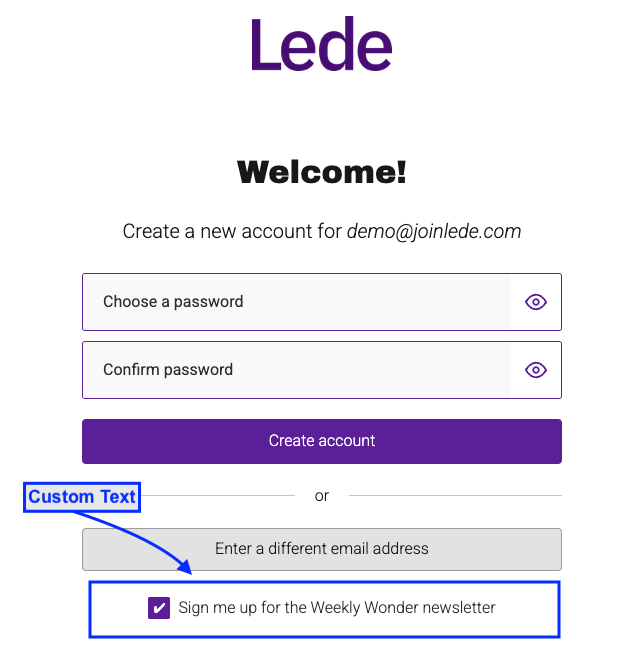
- Registration form
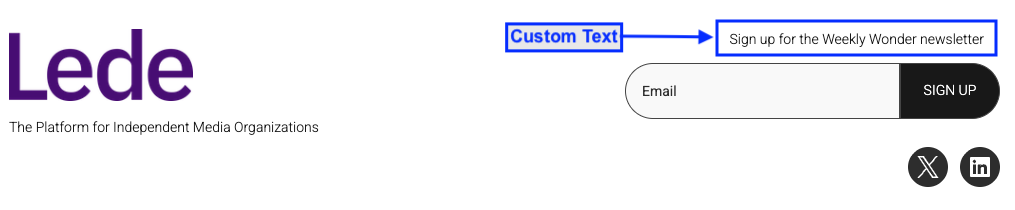
- Global Footer
- Article Footer
Locations with default text
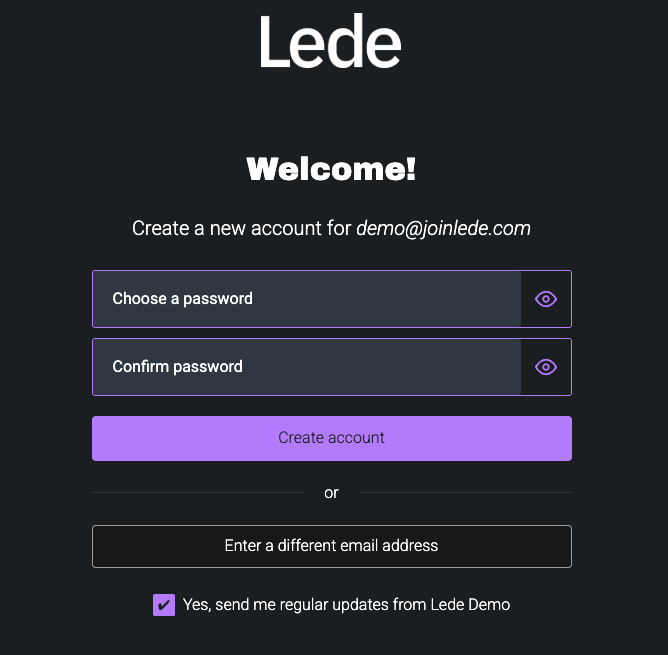
Registration form (checkbox)
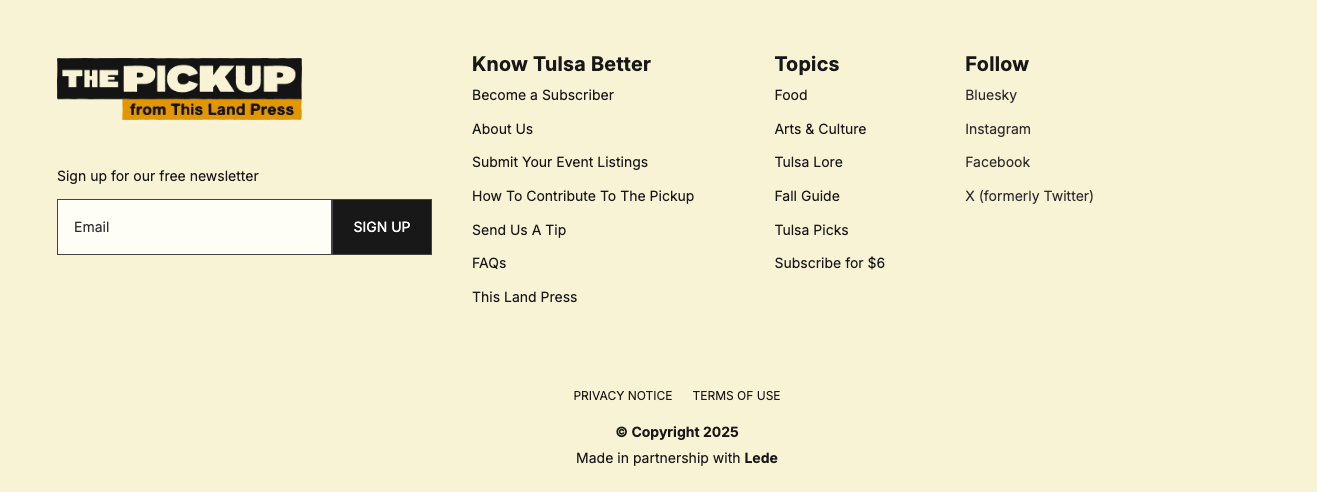
Global Footer
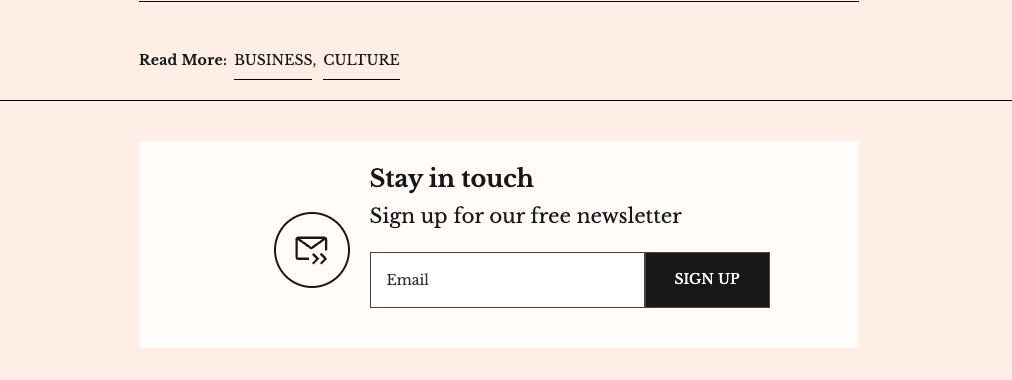
Article Footer
How to Customize Newsletter Text
To personalize your newsletter messaging across these managed locations:
- Navigate to Lede > Dashboard > Settings > Messaging & Copy
- Use the dedicated newsletter fields to enter your custom text:
- Register Page Newsletter Text — the registration-form checkbox copy
- Footer Newsletter Text — the prompt in your global footer
- Article Newsletter Heading and Article Newsletter Call-to-Action Text — the heading and CTA shown in the article footer
- Register Page Newsletter Text — the registration-form checkbox copy
- Footer Newsletter Text — the prompt in your global footer
- Article Newsletter Heading and Article Newsletter Call-to-Action Text — the heading and CTA shown in the article footer
- Each field has a 75-character limit
- Click Save to apply your changes
Why Customize Your Newsletter CTAs?
Customizing your newsletter text allows you to:
- Feature your default newsletter name for better brand recognition
- Maintain a consistent brand voice across all touchpoints
- Create more compelling calls-to-action that resonate with your audience
Locations with custom text
Registration form
Global Footer
Article Footer