Our end of August update includes our new System Status page, bringing you convenient insight into the current health of Lede systems. Then, we have updated the Subscribe button in your global header to support custom text, giving you yet another way to personalize your readers’ site experience. Finally, we have some updates to our content display options all geared towards making your work shine! Check out the full update below and reach out to us via Freshdesk if you have any questions or feedback. You can also check out past Lede platform updates.
TABLE OF CONTENTS
- Introducing Lede’s System Status Site
- New Feature: Customize Your Subscribe Button Text
- Content Options Roundup
- Better content previews
- Enhanced Featured Topic block
- Featured Image Display Option
Introducing Lede’s System Status Site
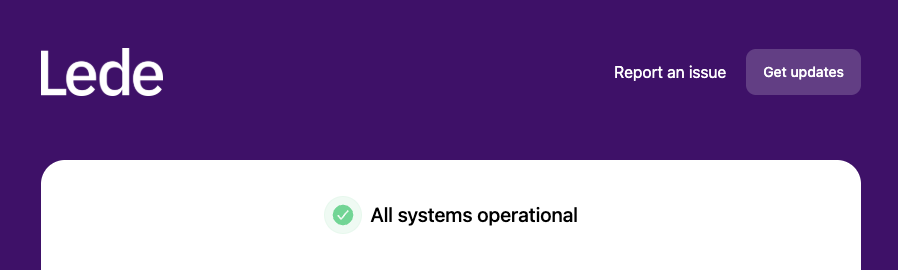
Our new System Status site gives you real-time visibility into Lede’s most important services with clear visual status indicators for Homepage, Logins, WP Admin, third party services and more. This is a valuable resource both for insight into the systems driving your site, and a way to find out about service disruptions, potentially before they even affect you.
By subscribing to automated notifications, you can receive timely updates on system health, and alerts if an issue does arise. You have full control over what you receive; subscribe to all updates or choose the specific services that matter most to you. Learn more about accessing and configuring your status updates →
The System Status site gathers several key pieces of information into one convenient place, saving you time and giving you peace of mind. You can find a link in the Lede menu with your WordPress admin, or bookmark this link for easy access.
New Feature: Customize Your Subscribe Button Text

You can now customize the text that appears on your Subscribe button, giving you more control over how you engage with your audience.
The Subscribe button in your global header and popup navigation now supports custom text. This button directs visitors to your products page, and you can now tailor its message to better fit your brand voice.
How to Use It: Navigate to Lede > Brand Appearance > Global Header and scroll down to the Subscribe Button Text field. We recommend keeping it under 10 characters (like “Join” or “Sign Up”) for the best mobile experience, though the field supports up to 12 characters.
Ready to make your Subscribe button truly yours? Head to your settings and give it a try!
Content Options Roundup
We’ve been busy giving you more ways to showcase your content exactly how you want it.
Better content previews
You can now display excerpts in the Post River homepage block. We can also enable excerpt display on post cards on archive pages (all, category, tag). Open up a Fresh Desk ticket to request this feature on your site.
Enhanced Featured Topic block
This homepage block now supports dek/subtitle display and offers a new two-column layout.
Featured Image Display Option
Display your article’s vertical featured image on the left or on the right.