Our end of December update focuses on updates to the homage and the display of bylines. Check out the full update below and reach out to us via Freshdesk if you have any questions or feedback. You can also check out past Lede platform updates.
Improved Homepage Previews
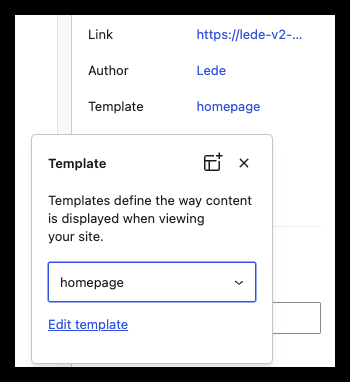
The latest update introduces more precise homepage previews, giving you greater confidence when testing layout changes. This enhancement removes page titles from the preview display and maintains proper content spacing, resulting in a more accurate representation of your live site.
To access this feature:
Navigate to your homepage in the editor
Open the Page sidebar
Scroll to locate the Post Panel
Click the Template selector
Choose “homepage” from the dropdown menu
Click Save to apply your changes
This streamlined preview functionality helps ensure your design decisions translate exactly as intended when published.
Enhanced Byline Customization for Homepage Content
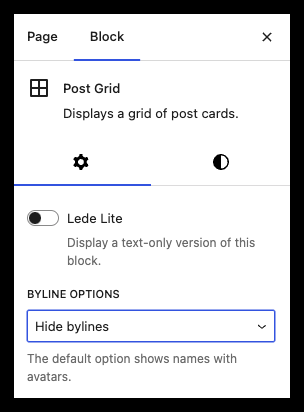
Take full control of your homepage’s presentation with our flexible byline display options. Each supported block type now offers three distinct byline styles:
Classic Display: Author byline with avatar (default)
Minimalist Display: Author byline without avatar
Hidden: No byline shown
These customization options are available in three key homepage blocks:
Featured Topic
Post Grid
Post River
To customize byline display:
Select your target homepage block
Open the block sidebar
Locate the Byline Option dropdown
Choose your preferred display style
With these options, you can maintain visual consistency across your site while adapting the byline presentation to suit different content areas and design preferences.
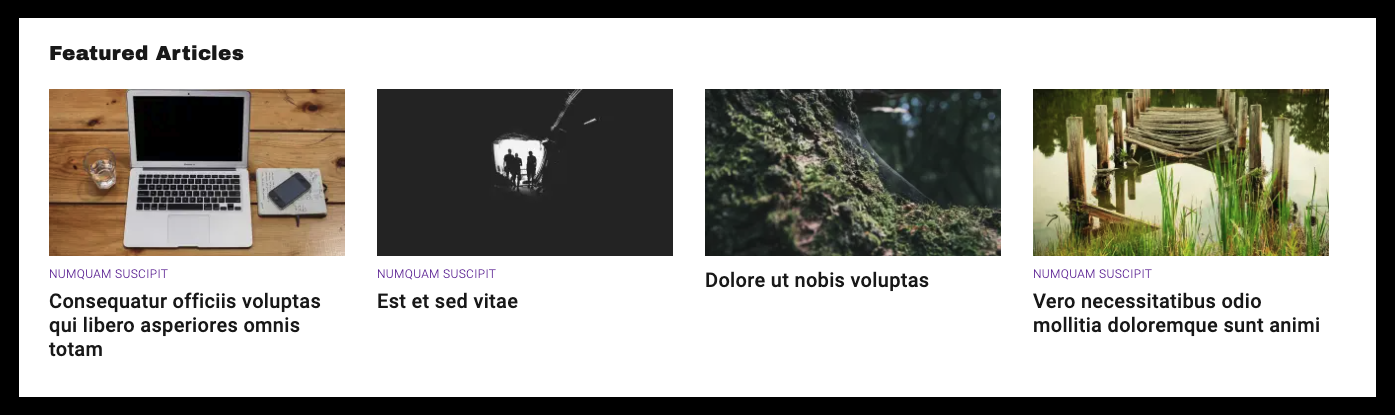
Example of Post Grid block without bylines
Center-Aligned Navigation: A New Header Design Option
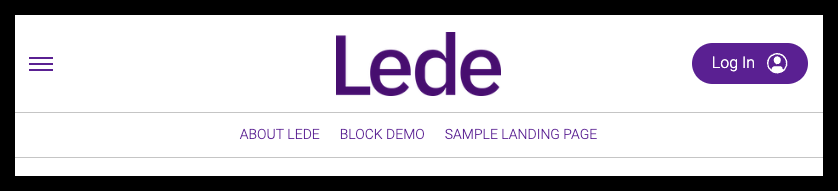
Create a more balanced and visually striking header by centering your navigation bar—a design choice that pairs elegantly with centered logos. This new alignment option helps create a cohesive appearance for your site’s header.
To implement centered navigation:
Access the Global Header Settings
Navigate to Lede > Brand Appearance > Global Header Styles
Navigate to Lede > Brand Appearance > Global Header Styles
Locate the Nav Bar appearance section
Select “centered” from the alignment options
⚠️ Note: For initial navigation bar setup, please refer to our comprehensive guide in the Knowledge Base.
This enhancement offers greater flexibility in header design, allowing you to achieve sophisticated layouts that align with your brand’s visual identity.
Example of a Centered Nav Bar
Other updates and improvements
- A link to the gift subscriptions page has been added to the global header and popout menu (subscribers only)
- WordPress’s core Media and Text Block is now available
- The cover block can now be aligned full-width