TABLE OF CONTENTS
- What’s New in a Nutshell
- Key Changes
- Enhanced Security
- Editor improvements
- Set any Image block as the Featured Image
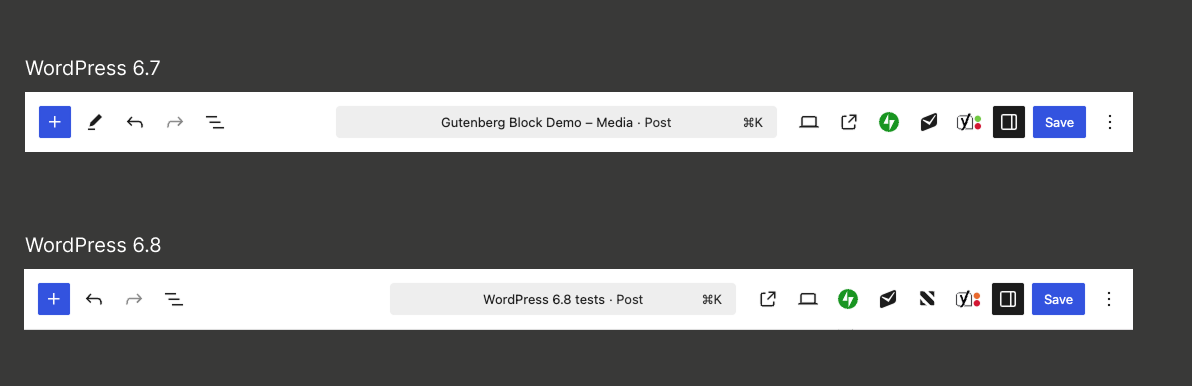
- Improved Toolbar Layout
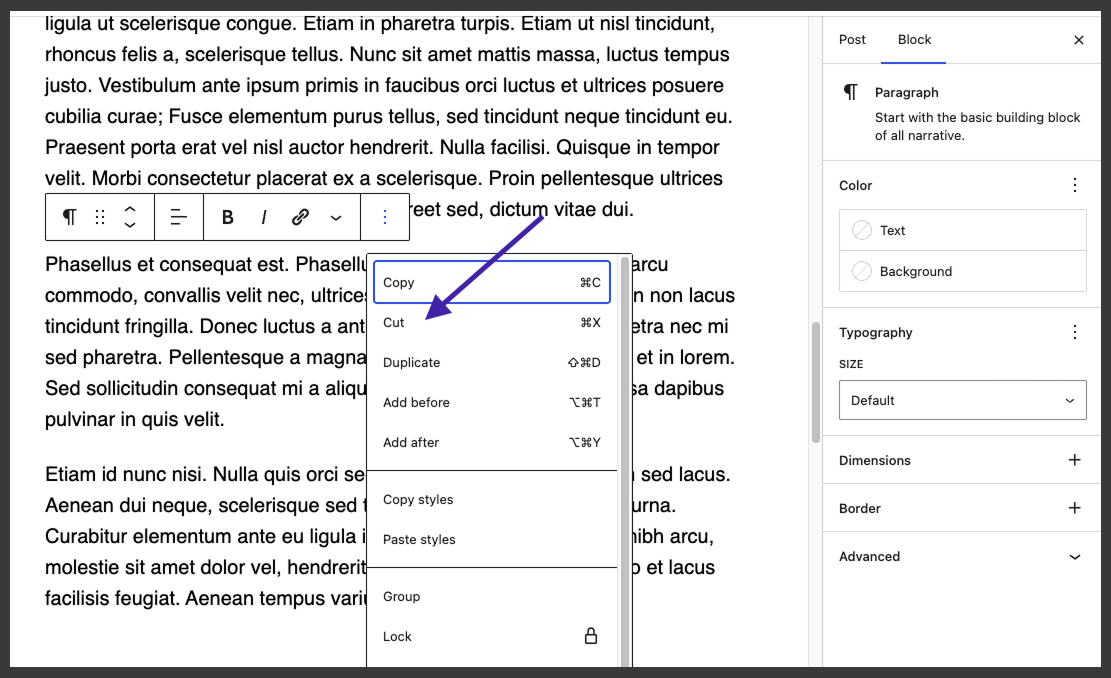
- Cut function in block options
- Several other improvements enhance your editing experience:
- Accessibility Improvements
- Getting the Most from Your Update
What’s New in a Nutshell
WordPress 6.8 focuses on making your site more secure and your editing experience smoother. The biggest change happens behind the scenes: stronger password protection that requires no action from you. In the editor, you can now set any image as your featured image directly from the content, and several small improvements make creating content more intuitive.
Key Changes
Enhanced Security
WordPress 6.8 includes a major security improvement in how passwords are stored. The system has upgraded from an older method to a more advanced “bcrypt” protection system. This change makes it exponentially harder for attackers to compromise user passwords. Bcrypt is deliberately slow and adaptive, making it much more secure against modern brute-force attacks while remaining future-proof as computing power increases.
What this means for you: Your site is now much more secure, but you don’t need to do anything. Your existing passwords continue to work exactly as before. When you next log in or change your password, the system will automatically upgrade your protection in the background. You won’t notice any difference in how you use your site, but your account will be significantly more secure.
Editor improvements
Set any Image block as the Featured Image
You can now set any image block as your featured image with just a few clicks. This will streamline your workflow by eliminating the need to set the same image in two places when you want to use an image that is already in your content.
While editing a post or page, add or select an existing Image block.
Click the block toolbar that appears when the image is selected
Click the Options icon (three vertical dots ⋮) in the toolbar
Select “Set as featured image” from the dropdown menu
Save or publish your post to apply these changes.
Don’t worry – deleting the image block won’t remove the featured image from your post. Your featured image will remain intact even if you decide later on to remove the image from your content.
Improved Toolbar Layout
The post editor’s top toolbar has been refined for better usability. The Tools menu has been streamlined, icons are better spaced for easier clicking, and the Preview and View Post buttons have switched positions for a more logical flow.
Cut function in block options
The block options menu now includes a Cut function alongside the existing Copy option, making it easier to move around content blocks in your posts.
Several other improvements enhance your editing experience
Cover blocks now offer better control over image and background resolution
Color controls include a “Reset All” button for quickly clearing customizations
Navigation blocks show clearer names in the List View for easier organization
Accessibility Improvements
This release includes dozens of accessibility fixes and enhancements, including improvements to labeling and navigation menu management. There are also many improvements to blocks and the overall user experience.
Getting the Most from Your Update
We encourage you to explore the block editor after this update. You might discover new ways to streamline your content creation process or find features that enhance your posts and pages.
Need Help?
If you encounter any issues following the update, please don’t hesitate to contact our support team through Fresh Desk. We’re here to help you make the most of these improvements and ensure your publishing experience remains smooth and productive.